Adding A Border To Text In Word 2010
One way of putting a border around a piece of text in Microsoft Word is to insert a text box and then type your text inside. Text boxes are useful in that you can drag them around your document. With text boxes, you first insert the box and then type your text inside.
There is a quicker and dirtier way to get a border around your text, that might just give you what you want. Note that this method won’t give you access to all the decorative styling effects you can apply to a text box, but sometimes you just don’t need them. With this method, you start with the piece of text and then apply the border.
If you want to try this method, but you haven’t got any text in your document yet, you can always generate some random text using this command:
=rand(4,5)
When you press Enter after typing this command, Word will generate 4 paragraphs of 5 sentences each.
Now to select your text. If you simply place the cursor inside a paragraph, the whole paragraph will get a border applied to it. If you want some other selection, select the precise piece of text yourself. With your text selected, click Home > Paragraph > Borders, and select the style of border you want.
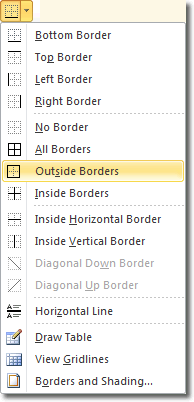
Most times you will probably need the Outside Borders option, so click that and see your border applied.
If you want more control over the border that is applied, select the Borders and Shading option at the bottom.

Here, you can change the following properties of the border:
- style – whether it’s a solid line, a dotted or dashed one etc.
- color – you are not limited to black! You can choose theme colors that make for a consistent look and feel in your whole document, or define your own colors.
- width – you can control how thick the border is. Most people just stick with the default 1/2 pt width, but you can have a border as wide as 6pt. That’s thick!
This window also presents a preview of what your border looks like before you actually apply it, so you can try out different options. When you have a border style you like, click OK.

Click to enlarge
Those who struggle with text boxes will find this a very easy alternative.
Resizing The Border
Unlike with a text box, you can’t click and drag on the border to resize it. Instead, you need to move the indents for the text and the border will follow the text. For example, if you drag the Right Indent tab to the left to make the text narrower, the right border will follow the right side of the text.

If dragging that right indent tab put the fear of God in you, you can learn more about setting tabs.